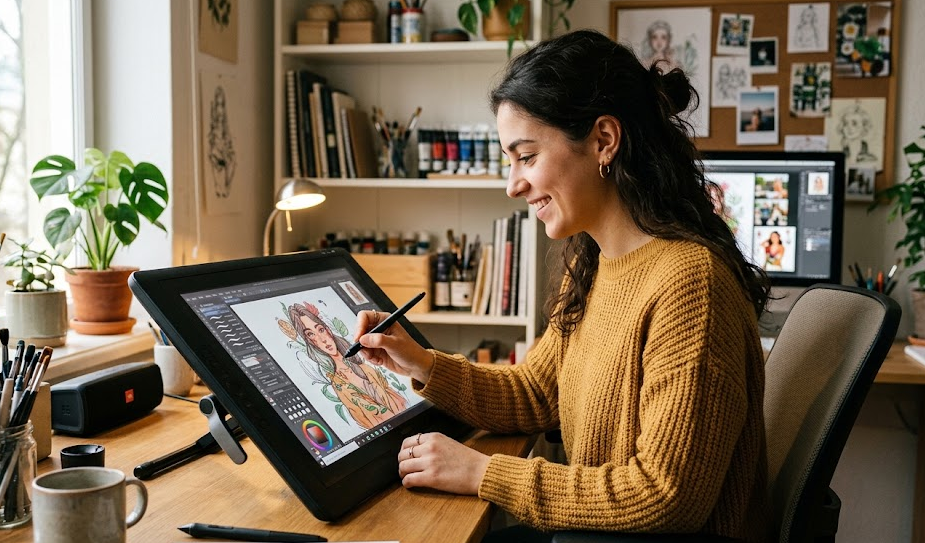
Digital art has transformed how illustrators, graphic designers, animators, photographers, architects, and creative professionals approach their work. Traditional tools such as pencils, brushes, and paper remain valuable, but digital alternatives offer greater flexibility, faster workflows, and virtually unlimited creative possibilities.
At the center of this transformation is the drawing tablet.
A drawing tablet allows users to create digital illustrations, sketches, paintings, designs, and handwritten notes using a pressure-sensitive stylus. Depending on the model, it can connect to a computer, include its own display, or function as a completely independent creative device.
However, choosing the right drawing tablet is not as straightforward as comparing screen sizes or pressure sensitivity specifications. Different devices serve different purposes, and an expensive professional tablet is not necessarily the best option for a beginner.
Some artists need a simple, affordable graphics tablet for occasional sketching. Others require a large, color-accurate pen display for professional illustration, animation, or photo editing. Meanwhile, users who prioritize portability may prefer an independent tablet such as an iPad.
This guide explains what drawing tablets are, how they work, who benefits from using them, and which technical specifications actually matter when purchasing one.
We will also compare different types of drawing tablets, examine important features, discuss common purchasing mistakes, and highlight recommended devices across different budgets.
1. What Is a Drawing Tablet?
A drawing tablet is an electronic input device that allows users to draw, write, sketch, paint, and interact with creative software using a digital pen called a stylus.
It translates the movement and pressure of the stylus into digital input that a computer or tablet can interpret.
Depending on the technology, the user either draws directly on the tablet’s surface or looks at a separate computer monitor while drawing.
Drawing tablets are commonly used with applications such as:
- Adobe Photoshop
- Adobe Illustrator
- Clip Studio Paint
- Krita
- Corel Painter
- Autodesk SketchBook
- Procreate (on compatible iPads)
- Blender
- ZBrush
Unlike a conventional mouse, a drawing tablet can detect pressure, tilt, and pen movement. This allows artists to control line thickness, brush opacity, shading, and other artistic characteristics naturally.
For example, pressing a stylus lightly can produce a thin pencil line, while applying more pressure can create a thicker, darker stroke.
This makes drawing tablets particularly useful for reproducing traditional artistic techniques in a digital environment.
How Does a Drawing Tablet Work?
Most modern drawing tablets use electromagnetic resonance (EMR) or other active stylus technologies to detect pen movement and pressure.
The tablet contains a digitizer that tracks the stylus position across its active drawing area.
When the user moves the pen, the device communicates several types of information to the connected computer or operating system:
| Input | What It Does | Practical Benefit |
|---|---|---|
| Position tracking | Detects the location of the stylus | Accurate drawing and navigation |
| Pressure sensitivity | Measures how firmly the pen is pressed | Controls brush thickness and opacity |
| Tilt recognition | Detects the angle of the stylus | Creates realistic shading and brush effects |
| Pen buttons | Provides additional programmable controls | Faster access to shortcuts |
| Hover detection | Tracks the pen above the surface | Precise positioning before drawing |
| Touch input | Detects finger gestures on supported devices | Zooming, rotating, and navigating the canvas |
The exact capabilities depend on the tablet and stylus technology.
Some models also include customizable shortcut buttons, touch rings, wireless connectivity, and replaceable pen nibs.
Drawing Tablet vs. Graphics Tablet: Is There a Difference?
The terminology can be confusing because manufacturers and retailers frequently use these terms interchangeably.
Technically, a graphics tablet generally refers to a screenless device that connects to a computer.
A drawing tablet is a broader category that can include screenless graphics tablets, pen displays, and standalone creative tablets.
For purchasing purposes, understanding these three categories is much more important than understanding their marketing names.
2. Three Main Types of Drawing Tablets
Before comparing brands or specifications, buyers should understand the fundamental differences between drawing tablet categories.
Type 1: Screenless Graphics Tablets
A screenless graphics tablet consists of a flat drawing surface and a pressure-sensitive stylus. It connects to a computer, but the artwork appears on the computer’s monitor rather than directly beneath the pen.
Popular examples include:
- Wacom Intuos
- Wacom Intuos Pro
- XPPen Deco series
- Huion Inspiroy series
- One by Wacom
Advantages:
- Usually the most affordable category.
- Lightweight and relatively durable.
- Excellent for illustration and photo editing.
- Often offers professional-grade pen tracking.
- Requires less desk space than larger pen displays.
Disadvantages:
- Requires hand-eye coordination.
- Users must look at the monitor instead of their drawing hand.
- Can take time to develop drawing accuracy.
- Does not provide a direct on-screen drawing experience.
Screenless graphics tablets are particularly suitable for beginners, students, digital painters, and professionals who prioritize functionality over an integrated display.
Type 2: Pen Displays (Screen Drawing Tablets)
A pen display combines a pressure-sensitive drawing surface with an integrated screen.
Users draw directly on the display, seeing their artwork beneath the stylus.
Popular examples include:
- Wacom Cintiq
- XPPen Artist Pro
- Huion Kamvas
- Xencelabs Pen Display
Advantages:
- Natural hand-eye coordination.
- Direct drawing experience.
- Easier transition from traditional paper drawing.
- Larger working areas on many professional models.
- Suitable for detailed illustration and animation.
Disadvantages:
- More expensive than screenless tablets.
- Usually requires a computer connection.
- Takes up more desk space.
- Can introduce additional cable and driver requirements.
- Display quality varies significantly between models.
For many illustrators, pen displays offer the most intuitive digital drawing experience.
However, they are not automatically more accurate or productive than screenless tablets. Experienced artists can work extremely efficiently without a built-in display.
Type 3: Standalone Drawing Tablets
Standalone drawing tablets are independent devices that combine a touchscreen, processor, operating system, battery, and stylus support.
Unlike conventional pen displays, they do not require a separate computer for everyday drawing.
Examples include:
- Apple iPad Pro
- Apple iPad Air
- XPPen Magic Drawing Pad
- Selected Samsung Galaxy Tab models
Advantages:
- Portable and convenient.
- No permanent computer connection required.
- Suitable for drawing outside the studio.
- Can run drawing applications independently.
- Also useful for entertainment, browsing, and productivity.
Disadvantages:
- Generally more expensive when premium models and accessories are included.
- Limited by operating system and application compatibility.
- Smaller working areas than many desktop pen displays.
- Battery life becomes an important consideration.
- Stylus accessories may need to be purchased separately.
Standalone tablets are ideal for artists who want flexibility and the ability to create wherever inspiration strikes.
Comparison: Three Types of Drawing Tablets
| Feature | Screenless Graphics Tablet | Pen Display | Standalone Tablet |
|---|---|---|---|
| Built-in display | No | Yes | Yes |
| Requires a computer | Yes | Usually | No |
| Direct drawing on screen | No | Yes | Yes |
| Portability | Excellent | Limited | Excellent |
| Typical price range (USD) | $30–$500 | $150–$2,000+ | $250–$1,500+ |
| Learning curve | Moderate | Low | Low |
| Professional suitability | Excellent | Excellent | Very good |
| Best for | Beginners and professionals | Illustrators and designers | Mobile creators |
Buying advice: If you are purchasing your first drawing tablet and already own a capable computer, a screenless graphics tablet is often the most economical starting point. If you strongly prefer drawing directly on a screen, consider a pen display. If mobility is your priority, choose a standalone device.
3. Who Needs a Drawing Tablet?
Drawing tablets are not exclusively designed for professional artists.
Their applications extend across several industries, including education, photography, animation, architecture, marketing, and general office productivity.
Here are the main groups that can benefit from owning one.
Digital Artists and Illustrators
Digital artists are among the most obvious users.
A pressure-sensitive stylus offers greater control over line weight, brush behavior, shading, and artistic details compared with a conventional mouse.
Whether creating character illustrations, concept art, comics, or digital paintings, a drawing tablet can make the creative process more natural.
Recommended type: Pen display or professional graphics tablet.
Graphic Designers
Graphic designers frequently work with vector graphics, typography, layouts, logos, and visual compositions.
A drawing tablet can improve precision when creating custom shapes, editing illustrations, adjusting masks, or working with complex selections.
For general graphic design, a high-end display is not always necessary.
Recommended type: Screenless graphics tablet or midrange pen display.
Photographers and Photo Editors
Photographers can benefit significantly from pen-based input, especially when performing detailed retouching.
In applications such as Adobe Photoshop and Lightroom, a stylus makes it easier to:
- Remove unwanted objects.
- Retouch skin.
- Create precise selections.
- Dodge and burn specific areas.
- Apply localized adjustments.
- Mask complicated objects.
- Perform detailed image manipulation.
Pressure sensitivity also allows users to control brush opacity and size naturally.
Recommended type: Medium or large screenless graphics tablet.
Animators and 3D Artists
2D animators use drawing tablets for storyboarding, character design, frame-by-frame animation, and digital painting.
3D artists can also benefit from stylus input when sculpting digital models, painting textures, or refining details in applications such as Blender and ZBrush.
A screenless tablet can work well for experienced 3D artists, while pen displays provide a more direct working experience.
Recommended type: Professional graphics tablet or large pen display.
Architects and Interior Designers
Architects and interior designers use digital drawing tools for:
- Concept sketches.
- Floor plan annotations.
- Design revisions.
- Technical illustrations.
- Presentation drawings.
- Visual brainstorming.
A tablet can make it easier to annotate drawings and communicate design ideas.
However, a drawing tablet is not a replacement for a mouse or specialized CAD input workflow. Its usefulness depends on the software and the designer’s working habits.
Recommended type: Medium or large graphics tablet or pen display.
Students and Teachers
Students studying illustration, design, animation, and multimedia production can use drawing tablets to develop digital skills.
Teachers can also use pen tablets for handwriting, diagram creation, remote instruction, and annotating educational materials.
A relatively inexpensive screenless model is often sufficient for these applications.
Recommended type: Entry-level graphics tablet.
People Who Take Digital Notes
Not every drawing tablet owner is an artist.
Digital pens are useful for:
- Handwritten notes.
- Mathematical equations.
- Diagrams.
- Document annotations.
- Brainstorming.
- Whiteboard presentations.
Standalone tablets are particularly convenient because they combine note-taking and general computing functionality.
Recommended type: Standalone tablet with compatible stylus.
Who Probably Does Not Need a Drawing Tablet?
A drawing tablet may not provide much value if you primarily:
- Browse the internet.
- Watch movies.
- Write standard documents.
- Manage spreadsheets.
- Perform basic computer tasks.
- Use applications that do not benefit from stylus input.
A conventional mouse, touchscreen, or laptop may be sufficient.
The most important consideration is whether your everyday activities actually benefit from pen-based interaction.
4. How to Choose the Best Drawing Tablet: 12 Important Factors
Choosing the right drawing tablet requires more than looking at the manufacturer’s headline specifications.
Some features directly influence drawing quality, while others mainly affect comfort, convenience, and productivity.
Below are the 12 factors worth examining before making a purchase.
1. Tablet Type
Start by identifying which type of device suits your workflow.
Ask yourself three questions:
- Do I want to draw directly on a screen?
- Will I primarily work at a desk or while traveling?
- Do I already own a computer capable of running creative software?
Your answers will help narrow the available options.
| User Requirement | Recommended Device |
|---|---|
| Affordable digital drawing | Screenless graphics tablet |
| Professional illustration | Pen display |
| Digital painting on the move | Standalone tablet |
| Photo retouching | Screenless graphics tablet |
| Animation and concept art | Pen display or graphics tablet |
| Handwriting and digital notes | Standalone tablet |
| General creative productivity | Standalone tablet |
2. Active Drawing Area and Screen Size
The active drawing area is the portion of a tablet that detects stylus input.
On screenless tablets, it is the usable drawing surface. On pen displays, it corresponds to the interactive display area.
Common sizes include:
| Tablet Size | Typical Use | Advantages | Limitations |
|---|---|---|---|
| Small (6–8 inches) | Notes and basic sketching | Portable and inexpensive | Limited drawing space |
| Medium (9–12 inches) | Illustration and photo editing | Good balance | May feel restrictive for large movements |
| Large (13–16 inches) | Professional illustration | Comfortable workspace | Requires more desk space |
| Extra-large (19–27 inches) | Studio production | Extensive drawing area | Expensive and less portable |
The physical size of the tablet matters because it influences how much you need to move your hand and arm.
For example, an extremely small tablet may feel uncomfortable when performing large brush movements, while an oversized model can occupy unnecessary desk space.
For most desktop users, medium-sized devices offer a practical balance between comfort, portability, and price.
3. Pressure Sensitivity
Pressure sensitivity determines how accurately a tablet detects the force applied to the stylus.
This feature is particularly important for digital painting, sketching, shading, and illustration.
Modern drawing tablets commonly advertise 4,096, 8,192, or 16,384 pressure levels.
However, higher numbers do not automatically guarantee a better drawing experience.
A tablet with excellent initial activation force, consistent pressure response, and a well-designed stylus can feel more natural than a competing model advertising more pressure levels.
What should you choose?
| Pressure Sensitivity | Suitability |
|---|---|
| 2,048 levels | Basic drawing and handwriting |
| 4,096 levels | General digital art |
| 8,192 levels | Advanced illustration and professional work |
| 16,384 levels | Premium specification for demanding creative workflows |
For most buyers, 8,192 levels are already sufficient.
Do not spend significantly more money simply to obtain a higher advertised pressure count.
4. Pen Tilt Recognition
Tilt recognition allows the tablet to detect the angle at which the stylus touches the surface.
This is particularly useful for applications that simulate traditional drawing instruments.
For example, tilting a digital pencil can produce wider shading strokes, while holding it upright creates more precise lines.
Most modern creative tablets offer approximately 60 degrees of tilt recognition.
If you primarily perform photo editing, note-taking, or basic graphic design, tilt support is less important.
For digital painters and illustrators, it is a useful feature worth prioritizing.
5. Display Resolution
Resolution determines how many pixels the screen can display.
For pen displays and standalone tablets, it influences the sharpness of illustrations, interface elements, and fine details.
Common resolutions include:
| Resolution | Classification | Best Use |
|---|---|---|
| 1280 × 800 | Basic | Entry-level devices |
| 1920 × 1080 | Full HD | General illustration |
| 1920 × 1200 | WUXGA | Compact creative displays |
| 2560 × 1440 | QHD | Detailed digital artwork |
| 2560 × 1600 | 2.5K-class | Advanced illustration |
| 3840 × 2160 | 4K UHD | Professional high-detail work |
Resolution should always be considered alongside screen size.
A 4K display is not necessarily a better purchase than a well-calibrated QHD display if both provide a similar usable drawing experience.
For example, QHD is a practical choice for many 16-inch pen displays, while 4K becomes more attractive on larger professional screens.
6. Color Accuracy and Color Gamut
Color accuracy is essential for artists working with digital painting, photography, branding, and commercial design.
Two important specifications are color gamut and color accuracy.
Color gamut describes the range of colors a display can reproduce.
Common color standards include:
- sRGB
- Adobe RGB
- DCI-P3
A display with strong sRGB coverage is suitable for most general digital content.
Adobe RGB is particularly relevant for photographers and print-oriented workflows.
DCI-P3 offers a wider color space commonly used in modern displays and digital media production.
For professional color-sensitive work, look for:
- High color gamut coverage.
- Factory calibration.
- Low color deviation.
- Hardware or software calibration support.
- Consistent brightness and color uniformity.
An important distinction: 140% sRGB gamut volume does not mean 140% sRGB coverage. Gamut volume and coverage are different measurements.
A large advertised gamut is not a substitute for accurate color reproduction.
7. Pen Latency and Responsiveness
Latency refers to the delay between moving the stylus and seeing the corresponding stroke appear on the display.
Lower latency generally creates a more natural drawing experience.
However, perceived responsiveness depends on multiple factors:
- Tablet hardware.
- Display refresh rate.
- Pen technology.
- Computer performance.
- Operating system.
- Drawing application.
- Software optimization.
A high refresh rate can make movement appear smoother, but it does not independently guarantee low pen latency.
For most illustrators, a well-optimized 60Hz device is perfectly usable.
Higher refresh rates can be particularly attractive for users who prioritize smoother visual feedback.
8. Screen Surface and Drawing Texture
The drawing surface influences how the stylus feels when moving across the tablet.
There are two common approaches:
Glossy surfaces: Offer smooth pen movement and are generally easier to clean, but may produce more reflections.
Matte or etched surfaces: Introduce additional friction, creating a texture that can resemble traditional paper.
Some artists prefer a smooth surface, while others find textured displays more comfortable.
This is largely a personal preference.
Before purchasing an expensive pen display, it is worth testing the surface if possible.
9. Stylus Technology and Ergonomics
The stylus is arguably one of the most important components of a drawing tablet.
A comfortable pen with predictable pressure response can significantly improve the drawing experience.
Important characteristics include:
- Weight and balance.
- Grip material.
- Button placement.
- Pressure activation force.
- Tilt recognition.
- Replaceable nibs.
- Battery requirements.
- Charging method.
Battery-free styluses are particularly convenient because they eliminate the need for regular charging.
Some technologies, such as Wacom’s EMR implementation, allow the pen to operate without an internal battery.
Other devices use rechargeable or battery-powered active pens.
Neither approach is universally superior. What matters is consistent tracking, comfort, and compatibility.
10. Connectivity and Compatibility
Before buying a drawing tablet, confirm that it works with your computer or operating system.
Common connectivity options include:
| Connection | Typical Purpose |
|---|---|
| USB-A | Basic computer connection |
| USB-C | Data and supported display connections |
| HDMI | Video signal for pen displays |
| Bluetooth | Wireless connectivity |
| Wi-Fi | Standalone tablet connectivity |
Some USB-C connections support video output, while others only transfer data.
This distinction is particularly important when connecting a pen display to a laptop.
Also check compatibility with:
- Windows.
- macOS.
- Android.
- ChromeOS.
- Linux, where supported.
- Your preferred drawing applications.
Do not assume that a tablet supports every operating system simply because it uses USB-C.
Driver availability, shortcut functionality, and application compatibility should also be checked.
11. Shortcut Buttons and Productivity Features
Many drawing tablets include customizable shortcut buttons.
These can be assigned to frequently used actions such as:
- Undo.
- Redo.
- Zoom.
- Brush selection.
- Canvas rotation.
- Eraser.
- Save.
- Keyboard shortcuts.
Some professional models also include touch rings, dials, or wireless shortcut remotes.
These features can reduce repetitive keyboard interaction and improve productivity.
However, they are not essential.
An experienced artist can work efficiently with a basic tablet and keyboard shortcuts.
12. Build Quality, Warranty, and Long-Term Support
A drawing tablet is an investment, particularly when purchasing a professional display.
Look beyond the initial specifications and consider:
- Manufacturer warranty.
- Driver update frequency.
- Replacement pen availability.
- Replacement nib prices.
- Screen repair costs.
- Customer support quality.
- Compatibility with future operating systems.
Wacom, Huion, XPPen, and Xencelabs all serve different segments of the market.
Price alone should not determine which manufacturer you choose.
5. Best Drawing Tablets to Consider in 2026
The market includes several established manufacturers offering products for different budgets and creative requirements.
The following selection covers entry-level, midrange, professional, and portable options.
Important rating methodology: The ratings below are SEE2GET editorial assessments based on product positioning, published specifications, functionality, and value considerations. They are not scores from independent hands-on testing. Prices represent observed US-market prices or listed starting prices and can change with promotions.
Quick Comparison Table
| Drawing Tablet | Type | Approx. US Price | SEE2GET Rating | Best For |
|---|---|---|---|---|
| Wacom Intuos Medium | Screenless | $129.95 | 9.0/10 | Beginners and students |
| Wacom Intuos Pro Medium | Screenless | $379.95 | 9.2/10 | Professional workflows |
| XPPen Artist Pro 16 (Gen 2) | Pen display | $599.99 | 9.3/10 | Digital illustrators |
| Huion Kamvas 24 Plus | Pen display | $749.00 | 9.1/10 | Desktop artists |
| Apple iPad Air M4 | Standalone | $749.00 | 9.2/10 | Portable digital art |
Prices are in USD. Apple Pencil Pro is sold separately. The listed tablet prices exclude taxes and optional accessories.
1. Wacom Intuos Medium
Best Budget-Friendly Choice
Approximate price: $129.95
SEE2GET rating: 9.0/10
The Wacom Intuos Medium is a practical option for people entering digital art or looking for a reliable screenless graphics tablet.
Its main advantage is simplicity.
Instead of paying for an integrated display, users receive a dedicated drawing surface that connects to a computer.
The medium version offers more working space than smaller entry-level alternatives, making it suitable for illustration, photo editing, and digital note-taking.
Key advantages:
- Affordable compared with professional pen displays.
- Established Wacom ecosystem.
- Compact and relatively lightweight.
- Suitable for Photoshop and other creative applications.
- Wireless Bluetooth version available.
Limitations:
- No integrated display.
- Requires hand-eye coordination.
- Not as feature-rich as the Intuos Pro series.
Who should buy it?
Students, beginners, hobbyists, and photographers who want to experience pen-based input without spending several hundred dollars.
2. Wacom Intuos Pro Medium
Best for Professional Screenless Workflows
Approximate price: $379.95
SEE2GET rating: 9.2/10
The Wacom Intuos Pro Medium is designed for creative professionals who prefer a traditional graphics tablet workflow.
Unlike screenless entry-level models, the Pro series emphasizes advanced controls, precision, and professional productivity.
The 2025 generation includes customizable controls and Wacom’s battery-free pen technology.
Its medium size offers a useful balance between drawing space and desk footprint.
Key advantages:
- Professional-oriented pen technology.
- Battery-free stylus.
- Customizable controls.
- Compact compared with large pen displays.
- Suitable for illustration and photo editing.
Limitations:
- Relatively expensive for a screenless tablet.
- Requires a separate computer monitor.
- May be unnecessary for casual users.
Who should buy it?
Professional illustrators, graphic designers, and photographers who prefer screenless tablets and want a premium input device.
3. XPPen Artist Pro 16 (Gen 2)
Best Overall Value Pen Display
Approximate price: $599.99
SEE2GET rating: 9.3/10
The XPPen Artist Pro 16 (Gen 2) is an interesting choice for artists who want a dedicated drawing display without entering the most expensive professional hardware category.
It features a 16-inch display with 2560 × 1600 resolution and an X3 Pro stylus supporting 16,384 pressure levels.
The display is fully laminated, helping reduce the visible distance between the pen tip and the displayed cursor.
It also offers a broad advertised color gamut, making it attractive for illustration and color-focused creative work.
Key specifications:
| Specification | Details |
|---|---|
| Display | 16 inches |
| Resolution | 2560 × 1600 |
| Pressure sensitivity | 16,384 levels |
| Color gamut coverage | 99% sRGB |
| Tilt recognition | 60 degrees |
| Screen lamination | Full lamination |
| Connection | External device required |
| Approximate price | $599.99 |
Advantages:
- High-resolution display.
- Modern stylus technology.
- Fully laminated drawing surface.
- Good balance of portability and workspace.
- Competitive feature set.
Limitations:
- Requires a connected computer.
- Smaller workspace than 22-inch and 24-inch alternatives.
- Not an independent computing device.
Who should buy it?
Illustrators, digital painters, design students, and intermediate artists who want to draw directly on a display.
4. Huion Kamvas 24 Plus
Best for Large Desktop Drawing Workspaces
Approximate price: $749.00
SEE2GET rating: 9.1/10
The Huion Kamvas 24 Plus is designed for artists who prefer a larger drawing surface.
Its 23.8-inch QHD display offers considerably more workspace than compact 13-inch or 16-inch pen displays.
The device features an etched anti-glare surface, full lamination, and battery-free electromagnetic resonance pen technology.
Its 2560 × 1440 resolution provides a practical balance between screen size and image detail.
Key specifications:
| Specification | Details |
|---|---|
| Display | 23.8 inches |
| Resolution | 2560 × 1440 |
| Pressure sensitivity | 8,192 levels |
| Pen technology | Battery-free EMR |
| Color gamut volume | 140% sRGB |
| Screen surface | Etched anti-glare glass |
| Full lamination | Yes |
| Computer required | Yes |
| Approximate price | $749.00 |
Advantages:
- Large working area.
- QHD resolution.
- Etched anti-glare glass.
- Battery-free stylus.
- Suitable for extended desktop sessions.
Limitations:
- Requires significant desk space.
- Not portable.
- Requires an external computer.
- No integrated standalone operating system.
Who should buy it?
Desktop illustrators, digital painters, and artists who prefer working on a large display.
5. Apple iPad Air M4
Best Portable Drawing Tablet
Approximate starting price: $749.00
SEE2GET rating: 9.2/10
The Apple iPad Air M4 is a versatile standalone device that can function as a digital drawing tablet.
Unlike traditional pen displays, it does not need a separate computer to run compatible drawing applications.
It supports Apple Pencil Pro, which offers pressure sensitivity, tilt recognition, and additional creative controls.
Its portability makes it attractive for artists who work in different locations.
Advantages:
- Independent operating system.
- Excellent application ecosystem.
- Portable design.
- Compatible with Apple Pencil Pro.
- Suitable for illustration, sketching, and note-taking.
- Useful beyond digital art.
Limitations:
- Apple Pencil Pro costs extra.
- Smaller screen than large desktop pen displays.
- Some professional desktop applications are unavailable or have different mobile versions.
- Accessories can increase the total purchase cost.
Who should buy it?
Students, freelance illustrators, travelers, and artists who want a portable creative device that also functions as a general-purpose tablet.
6. Drawing Tablet Brands: Which Manufacturers Should You Consider?
Several manufacturers dominate the drawing tablet market.
Each has a different approach to pricing, product design, software support, and professional features.
Wacom
Wacom is one of the most established manufacturers in the graphics tablet industry.
Its product lineup includes entry-level screenless tablets, professional pen tablets, and advanced pen displays.
The company is particularly well known for its stylus technology and long-standing presence in professional creative environments.
Best known for: Professional workflows, pen technology, and established product ecosystems.
Official website: https://www.wacom.com
Huion
Huion has become a major competitor in the affordable and midrange drawing tablet market.
Its Kamvas range includes several pen displays, from compact models to large desktop devices.
The manufacturer often offers competitive specifications at lower prices than premium alternatives.
Best known for: Value-oriented pen displays and large drawing screens.
Official website: https://www.huion.com
XPPen
XPPen offers screenless graphics tablets, pen displays, and standalone creative devices.
Its Artist and Artist Pro ranges compete directly with products from Wacom and Huion.
The company focuses on providing advanced features, modern styluses, and competitive pricing.
Best known for: Feature-rich drawing displays at competitive prices.
Official website: https://www.xp-pen.com
Xencelabs
Xencelabs focuses on creative professionals and advanced digital artists.
Its product lineup includes graphics tablets and pen displays with an emphasis on ergonomics, stylus design, and workflow controls.
Best known for: Professional creative workflows and premium input devices.
Official website: https://www.xencelabs.com
Apple
Apple does not primarily manufacture dedicated graphics tablets, but its iPad lineup has become a significant part of the digital art ecosystem.
The combination of iPad hardware, Apple Pencil, and drawing applications such as Procreate makes it an attractive option for independent creators.
Best known for: Standalone drawing, portability, and creative applications.
Official website: https://www.apple.com
Brand Comparison
| Brand | Main Strength | Price Positioning | Best For |
|---|---|---|---|
| Wacom | Pen technology and professional ecosystem | Midrange to premium | Professional artists |
| Huion | Competitive hardware specifications | Budget to premium | Value-conscious artists |
| XPPen | Features and competitive pricing | Budget to premium | Beginners and professionals |
| Xencelabs | Ergonomics and workflow design | Premium | Creative professionals |
| Apple | Portability and application ecosystem | Midrange to premium | Mobile creators |
No manufacturer is automatically the best choice for every user.
The right decision depends on the specific model, software compatibility, stylus performance, warranty, and total cost of ownership.
7. How Much Should You Spend on a Drawing Tablet?
The ideal budget depends on how frequently you plan to use the device and what type of creative work you perform.
A beginner who sketches occasionally does not need the same hardware as an illustrator working on commercial projects every day.
Here is a practical breakdown of spending categories.
| Budget (USD) | Tablet Category | Expected Capabilities | Ideal User |
|---|---|---|---|
| $30–$80 | Basic graphics tablet | Basic pen input and drawing controls | Beginners |
| $80–$200 | Entry-level graphics tablet | Larger work area and better controls | Students and hobbyists |
| $200–$400 | Advanced graphics tablet or basic pen display | More refined pen technology and workflow features | Intermediate artists |
| $400–$800 | Midrange pen display or premium graphics tablet | Better displays and advanced stylus features | Serious illustrators |
| $800–$1,500 | Professional pen display or standalone tablet | Larger screens and advanced capabilities | Professional creators |
| $1,500+ | Premium professional equipment | Large or advanced displays and specialized features | Studios and demanding professionals |
These are approximate market segments rather than strict technical categories.
A $200 graphics tablet can outperform a $700 pen display in certain workflows, especially if the user values pen accuracy and does not need an integrated screen.
Recommended Budget Allocation
For most buyers, the following approach makes sense:
Beginner: Spend approximately $80–$150 on a reliable graphics tablet.
Intermediate artist: Consider $200–$500, depending on whether a display is necessary.
Professional illustrator: Budget approximately $400–$1,000 for a dedicated pen display or advanced graphics tablet.
Mobile creator: Consider $450–$1,000 for a standalone tablet, including the possibility of additional stylus and accessory costs.
The objective is not to purchase the most expensive device. It is to purchase the device that removes limitations from your creative workflow.
8. Common Drawing Tablet Buying Mistakes
Even experienced computer users can make mistakes when purchasing their first drawing tablet.
Here are some of the most common problems to avoid.
Mistake 1: Choosing Based on Pressure Levels Alone
Manufacturers often advertise pressure sensitivity as a major selling point.
However, 16,384 pressure levels do not automatically make a tablet twice as good as an 8,192-level model.
Pen tracking, activation force, driver quality, and pressure consistency matter just as much.
Mistake 2: Buying a Display That Is Too Small
Compact displays can be convenient, but they may become uncomfortable during extended illustration sessions.
Before purchasing, consider the type of artwork you create and how much screen space you need.
Mistake 3: Ignoring Computer Compatibility
Some pen displays require multiple connections for video, data, and power.
A laptop with limited ports may need additional adapters or a compatible USB-C connection.
Always verify connectivity before purchasing.
Mistake 4: Assuming Every Tablet Includes a Stylus
Most dedicated graphics tablets include a compatible pen, but not every standalone tablet does.
For example, Apple Pencil Pro is sold separately from the iPad Air.
Always calculate the complete purchase cost.
Mistake 5: Confusing Display Resolution With Drawing Accuracy
A high-resolution screen improves visual detail, but it does not automatically improve pen tracking.
These are separate characteristics.
A tablet with a Full HD display can still offer an excellent drawing experience.
Mistake 6: Overlooking Driver Quality
A drawing tablet depends on software drivers to communicate with the operating system and creative applications.
Poor driver support can lead to:
- Inconsistent pressure response.
- Pen recognition problems.
- Shortcut button malfunctions.
- Compatibility issues after operating system updates.
Research the manufacturer’s driver support before purchasing.
Mistake 7: Purchasing a Professional Tablet Too Early
Beginners sometimes spend hundreds of dollars on professional hardware before developing a consistent drawing workflow.
This is unnecessary.
Start with a reliable device that meets your current requirements. Upgrade when you encounter genuine limitations.
9. Drawing Tablets vs. Traditional Tablets vs. Laptops
A common question is whether it makes more sense to purchase a dedicated drawing tablet, a standalone tablet, or a touchscreen laptop.
The answer depends on how you work.
| Feature | Dedicated Graphics Tablet | Standalone Tablet | Touchscreen Laptop |
|---|---|---|---|
| Primary purpose | Digital drawing input | General computing and drawing | General computing |
| Requires another computer | Usually | No | No |
| Drawing experience | Depends on model | Direct screen drawing | Depends on stylus support |
| Portability | Varies | Excellent | Good |
| Professional illustration | Excellent | Very good | Good to very good |
| Desktop software support | Excellent through connected PC | Limited to supported apps | Excellent |
| Battery dependency | Usually none for the tablet itself | Yes | Yes |
| Typical cost (USD) | $30–$2,000+ | $250–$1,500+ | $500–$2,500+ |
Dedicated graphics tablets are generally the most specialized tools.
Standalone tablets are better for mobile creativity, while touchscreen laptops offer broader computing functionality.
A dedicated pen display connected to a powerful desktop computer remains an excellent option for users who want a large creative workspace.
10. Accessories Worth Considering
The tablet itself is only one part of the drawing setup.
A few additional accessories can make a meaningful difference.
| Accessory | Purpose | Typical Price (USD) |
|---|---|---|
| Adjustable tablet stand | Improves drawing posture | $20–$100 |
| Replacement pen nibs | Maintains stylus functionality | $5–$25 |
| Drawing glove | Reduces friction between hand and screen | $5–$20 |
| Protective carrying case | Protects portable devices | $15–$60 |
| Screen protector | Changes surface texture or protects the display | $10–$40 |
| Shortcut remote | Provides additional programmable controls | $40–$100 |
| USB-C hub | Adds connectivity options | $20–$80 |
These prices are general estimates and depend on compatibility, manufacturer, and product quality.
An adjustable stand is particularly worthwhile for users who spend several hours drawing.
Ergonomics should not be overlooked, especially when using larger pen displays.
11. How to Test a Drawing Tablet Before Buying
If possible, test a drawing tablet before committing to an expensive purchase.
A short hands-on session can reveal issues that specifications cannot communicate.
Here is a practical testing checklist.
1. Test pressure response
Draw lines using different pressure levels. Check whether the tablet responds naturally and consistently.
2. Test diagonal lines
Draw slow diagonal lines and curved strokes. Look for unexpected wobbling or inconsistent tracking.
3. Check pen accuracy
Move the stylus around the corners and edges of the active area.
4. Test tilt recognition
Try shading with the stylus held at different angles.
5. Examine the display
Look for glare, reflections, visible pixelation, and uneven brightness.
6. Check parallax
On pen displays, observe the distance between the physical pen tip and the displayed cursor.
7. Evaluate ergonomics
Check the tablet’s position, pen weight, grip, and available shortcuts.
8. Verify software compatibility
Confirm that the device works with your preferred operating system and creative applications.
9. Check the accessories
Make sure the required cables, pen, stand, and power adapter are included.
10. Review warranty conditions
Understand the replacement, repair, and support policies before purchasing.
12. Final Verdict: Which Drawing Tablet Should You Buy?
There is no universally perfect drawing tablet.
The best choice depends on your experience, creative requirements, budget, and preferred working environment.
Here are our recommendations by user category.
| User Category | Recommended Model | Approximate Price (USD) | SEE2GET Rating |
|---|---|---|---|
| Beginners | Wacom Intuos Medium | $129.95 | 9.0/10 |
| Professional screenless users | Wacom Intuos Pro Medium | $379.95 | 9.2/10 |
| Digital illustrators | XPPen Artist Pro 16 (Gen 2) | $599.99 | 9.3/10 |
| Desktop artists | Huion Kamvas 24 Plus | $749.00 | 9.1/10 |
| Mobile creators | Apple iPad Air M4 | $749.00 | 9.2/10 |
Best for Beginners: Wacom Intuos Medium
An accessible entry point into digital drawing without the cost and complexity of a pen display.
Best for Professional Screenless Workflows: Wacom Intuos Pro Medium
A premium graphics tablet for users who value precise stylus input and efficient desktop workflows.
Best Overall Value Pen Display: XPPen Artist Pro 16 (Gen 2)
A strong combination of resolution, stylus features, display technology, and competitive pricing.
Best for Large Desktop Workspaces: Huion Kamvas 24 Plus
A practical option for artists who prefer a large drawing surface and do not need portability.
Best Portable Drawing Device: Apple iPad Air M4
A versatile standalone device for artists who want to draw, take notes, and work away from a desk.
Frequently Asked Questions About Drawing Tablets
1. Are drawing tablets worth buying?
Yes, particularly for people who regularly work with digital illustrations, photo editing, graphic design, animation, or handwritten notes.
A drawing tablet provides more natural pen-based control than a conventional mouse.
However, occasional computer users may not benefit enough to justify the additional expense.
2. Can beginners use drawing tablets?
Absolutely.
Entry-level graphics tablets are relatively easy to set up and offer an affordable way to learn digital art.
Screenless models require some hand-eye coordination, but most users become more comfortable with practice.
3. Do drawing tablets need a computer?
Not all of them.
Screenless graphics tablets and most pen displays require an external computer or compatible device.
Standalone drawing tablets, including iPads, operate independently.
4. Is 8,192 pressure sensitivity enough?
Yes.
For most digital artists, 8,192 pressure levels provide more than enough input resolution.
Stylus quality, pressure consistency, and initial activation force are more important than simply choosing the highest advertised number.
5. Which is better: Wacom, Huion, or XPPen?
There is no universal winner.
Wacom is well established in professional workflows, while Huion and XPPen offer competitive alternatives across several price categories.
Compare individual models rather than assuming one manufacturer is always superior.
6. Is a drawing tablet with a screen better?
Not necessarily.
Pen displays provide direct visual feedback and can feel more intuitive.
Screenless graphics tablets are generally more affordable and can offer excellent accuracy.
The right option depends on your working habits.
7. Can I use a drawing tablet for photo editing?
Yes.
Drawing tablets are particularly useful for precision retouching, masking, selections, localized adjustments, and brush-based editing.
They are widely compatible with applications such as Adobe Photoshop.
8. How long does a drawing tablet last?
A quality drawing tablet can remain useful for several years.
Longevity depends on build quality, stylus durability, screen condition, driver support, and availability of replacement accessories.
Screenless tablets often have fewer components that can wear out than integrated pen displays.
9. Do drawing tablets work with Photoshop?
Most major graphics tablet manufacturers provide compatibility with Adobe Photoshop.
However, pressure sensitivity and shortcut functionality depend on the device, drivers, operating system, and application configuration.
10. Is an iPad better than a dedicated drawing tablet?
An iPad is more versatile because it works independently and supports a wide range of applications.
A dedicated pen display, however, can provide a larger drawing area and integrate directly with desktop creative software.
Neither option is universally better.
Conclusion
Drawing tablets have become valuable tools for anyone working with digital creativity, from beginners learning illustration to professionals producing commercial artwork.
The key to choosing the right device is understanding how different tablet categories work and identifying which features genuinely improve your workflow.
Screenless graphics tablets remain an excellent choice for affordability and professional precision. Pen displays provide a direct drawing experience, while standalone tablets offer the flexibility to create almost anywhere.
When comparing models, prioritize drawing comfort, stylus quality, active area, display characteristics, software compatibility, and long-term support.
Do not purchase a device simply because it advertises the highest pressure sensitivity or resolution.
A well-chosen midrange tablet that matches your workflow will often provide more value than an expensive professional model with features you rarely use.
The best drawing tablet is ultimately the one that makes your creative process more comfortable, productive, and enjoyable.