
The best laptops for seniors make everyday tasks feel straightforward rather than complicated. A clear screen, comfortable keyboard, dependable performance, and an operating system that suits the user’s habits matter more than premium specifications.
Some older adults will appreciate a large Windows laptop for email, online banking, and documents. Others may prefer a MacBook with its long battery life and integration with an iPhone. A Chromebook can be a sensible budget choice for someone who mainly browses the web, watches videos, and uses online services.
Our seven recommendations cover these different needs, from affordable everyday computers to premium models with larger, high-quality displays.
Our top recommendations:
- Best premium choice: Apple MacBook Air 15-inch (M5, 2026)
- Best Windows option with a large screen: Acer Swift Go 16 AI
- Best budget Windows option: Acer Aspire Go 16
- Best for everyday Windows use: Acer Aspire 16
- Best Chromebook for most users: HP Chromebook Plus 15.6-inch
- Best affordable Chromebook: ASUS Chromebook CX15
- Best for battery life and everyday productivity: Lenovo IdeaPad Slim 5x Gen 11
| Laptop | Approx. Price (USD) | Cost Level |
|---|---|---|
| Apple MacBook Air 15-inch (M5) | $1,499 | 😟 High |
| Acer Swift Go 16 AI | $1,100 | 😟 High |
| Acer Aspire Go 16 | $650 | 😐 Average |
| Acer Aspire 16 | $750 | 😐 Average |
| HP Chromebook Plus 15.6-inch | $550 | 😐 Average |
| ASUS Chromebook CX15 | $250 | 😊 Low |
| Lenovo IdeaPad Slim 5x Gen 11 | $850 | 😐 Average |
1. Apple MacBook Air 15-inch (M5, 2026) — Best Premium Laptop for Seniors
Editorial rating: 9.2/10
Typical price category: Premium
Best for: People who want a polished, quiet, long-lasting laptop, especially existing Apple users.
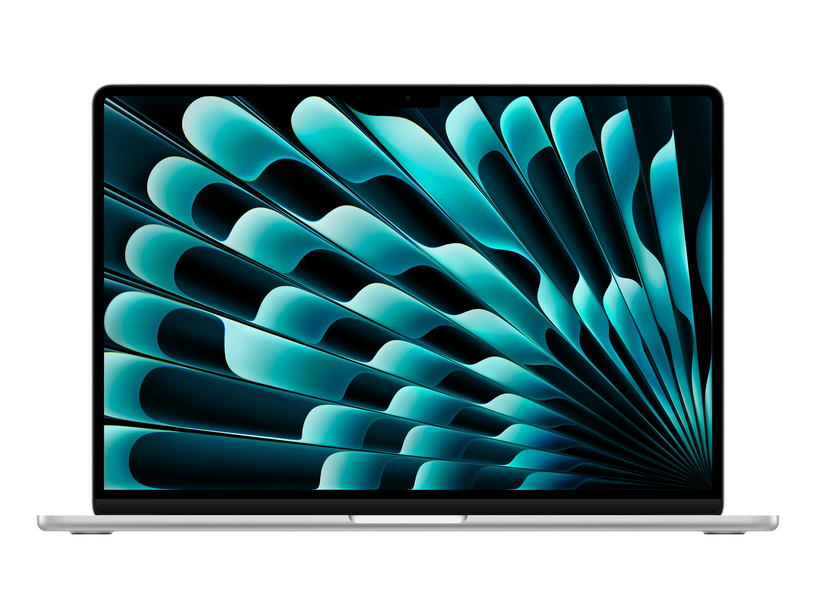
The 15-inch MacBook Air is an excellent premium option for seniors who want a computer that feels responsive and straightforward in everyday use. Its large display provides plenty of space for reading articles, viewing photographs, participating in video calls, and working with documents.
The 2026 M5 model is a strong choice for people who want a laptop they can keep using for years. It offers considerably more performance than ordinary browsing and email require, leaving plenty of room for photo libraries, video calls, productivity applications, and other tasks.
Why we recommend it
The 15.3-inch display is one of its most appealing features. Its high resolution helps text and images look crisp, while macOS provides built-in accessibility options for increasing text size, adjusting contrast, and using voice input.
Battery life is another advantage. Apple advertises up to 18 hours of video streaming for the MacBook Air, although actual runtime depends on brightness, applications, and usage.
For someone who already owns an iPhone, the MacBook Air can make everyday communication more convenient. Supported features allow users to work with messages, photos, and other Apple services across devices.
The laptop is also relatively light for a 15-inch model, making it practical to move between rooms or take on a trip.
What to consider
The MacBook Air costs more than many laptops designed for everyday home use. Some people may also need time to adjust to macOS if they’ve used Windows for decades.
Its selection of physical ports is limited compared with some Windows laptops. Buyers who want to connect several older USB devices may need an adapter or hub.
The display is not a touchscreen, so users who prefer tapping directly on items should consider a different model.
Verdict: The MacBook Air 15-inch is a compelling choice for seniors who want a high-quality laptop and don’t mind paying more for it. It’s particularly attractive for people already comfortable with Apple’s ecosystem.
2. Acer Swift Go 16 AI — Best Windows Laptop With a Large Screen
Editorial rating: 9.1/10
Typical price category: Upper midrange to premium
Best for: Seniors who prefer Windows and want a spacious display for reading and everyday work.
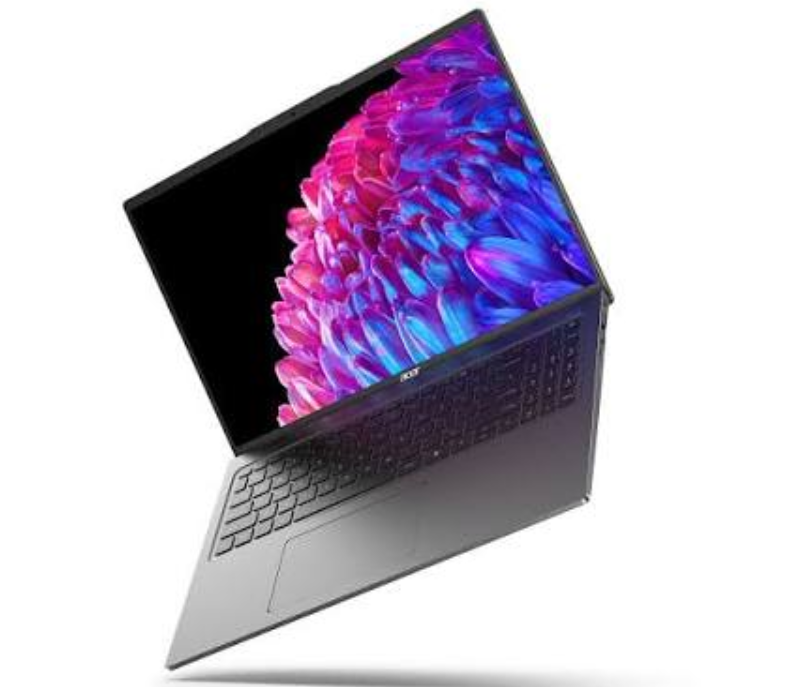
For someone who wants a traditional Windows computer with a generous screen, the Acer Swift Go 16 AI deserves serious consideration.
Its 16-inch display gives websites, documents, photographs, and video calls plenty of room. Depending on the configuration, buyers can also get a touchscreen, which may make navigation more natural for people who prefer tapping buttons and links instead of using a touchpad.
The Swift Go range is designed to balance portability with productivity. That combination is useful for seniors who want a large display without buying a bulky desktop replacement.
Why we recommend it
The main attraction is the screen. A 16-inch panel provides extra space for larger interface elements and makes it easier to keep several windows visible at once.
A suitable configuration with 16GB of RAM and an SSD should comfortably handle everyday activities such as:
- Browsing websites and reading news
- Sending and receiving email
- Making video calls with family
- Writing documents and printing forms
- Organizing photographs
- Managing personal files
Windows also offers built-in accessibility tools, including adjustable text size, display scaling, magnification, voice typing, and a screen reader.
The Swift Go 16 AI is powerful enough for ordinary home computing without requiring users to learn anything about artificial intelligence features. Those functions are optional extras rather than a reason to buy the laptop.
What to consider
The Swift Go is not the cheapest option. Its software package may also include preinstalled applications that some users won’t need.
A large touchpad can take some getting used to, particularly for people who prefer a physical mouse. Buyers should try the keyboard and touchpad in a store if possible.
The precise specifications and price depend on the regional model and configuration, so check the screen type, memory, storage, and processor before ordering.
Verdict: The Acer Swift Go 16 AI is a strong Windows choice for seniors who value a large, clear display and want a modern laptop for everyday use.
3. Acer Aspire Go 16 — Best Budget Windows Laptop for Seniors
Editorial rating: 8.7/10
Typical price category: Budget to lower midrange
Best for: People who want a large Windows laptop without paying for premium extras.
Not everyone needs a premium laptop. For email, online shopping, web browsing, video calls, and document editing, a more affordable model can be a perfectly sensible purchase.
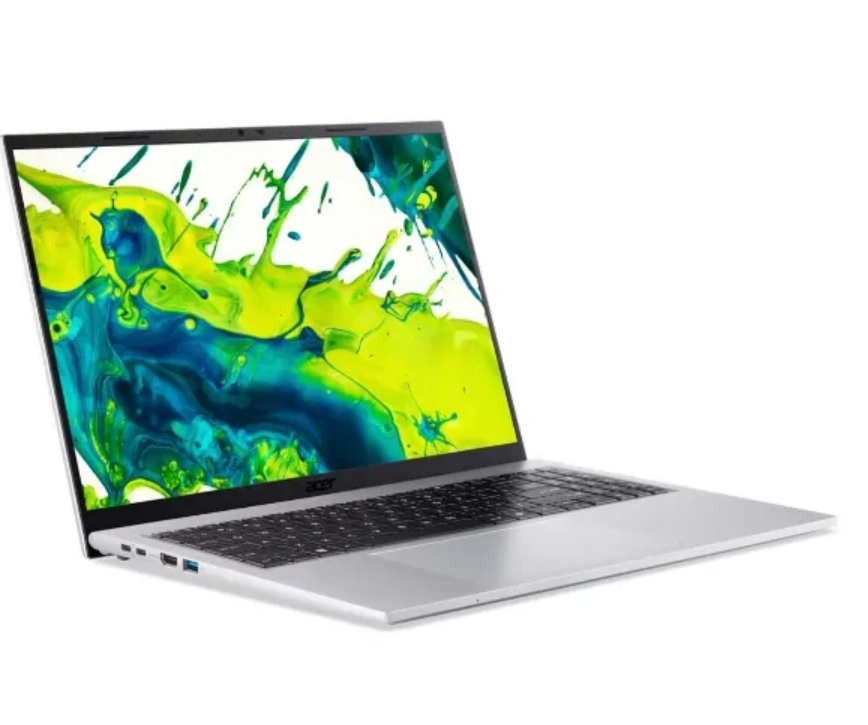
The Acer Aspire Go 16 is designed around everyday computing rather than high-end performance. Its large display makes it a practical option for people who want a traditional laptop for use at home.
Why we recommend it
The biggest advantage is the combination of a spacious screen and a budget-oriented design.
A 16-inch display offers plenty of room for reading articles and viewing documents. Users can also increase Windows text and interface scaling to make menus, icons, and buttons more comfortable to see.
The Aspire Go family includes configurations aimed at everyday tasks. A model with an SSD and sufficient memory can handle routine browsing, email, office applications, and streaming without requiring expensive components.
For seniors who already know Windows, the Aspire Go also avoids the learning curve of switching to a different operating system.
What to consider
Specifications can differ substantially between configurations. Check the exact processor, memory, storage, and screen resolution rather than assuming every Aspire Go 16 is identical.
Budget models may have less impressive speakers, displays, or build quality than premium laptops. Battery life can also vary depending on the hardware and brightness settings.
For a purchase intended to last several years, prioritize a configuration with 16GB of RAM and a 512GB SSD, if the price difference is reasonable. For light use on a tight budget, a more modest configuration may be sufficient.
Verdict: The Acer Aspire Go 16 is worth considering for seniors who want a large Windows screen and reliable everyday functionality without spending heavily on premium features.
4. Acer Aspire 16 — Best Everyday Windows Laptop
Editorial rating: 8.8/10
Typical price category: Budget to midrange
Best for: Seniors who want a practical Windows laptop for everyday home computing.
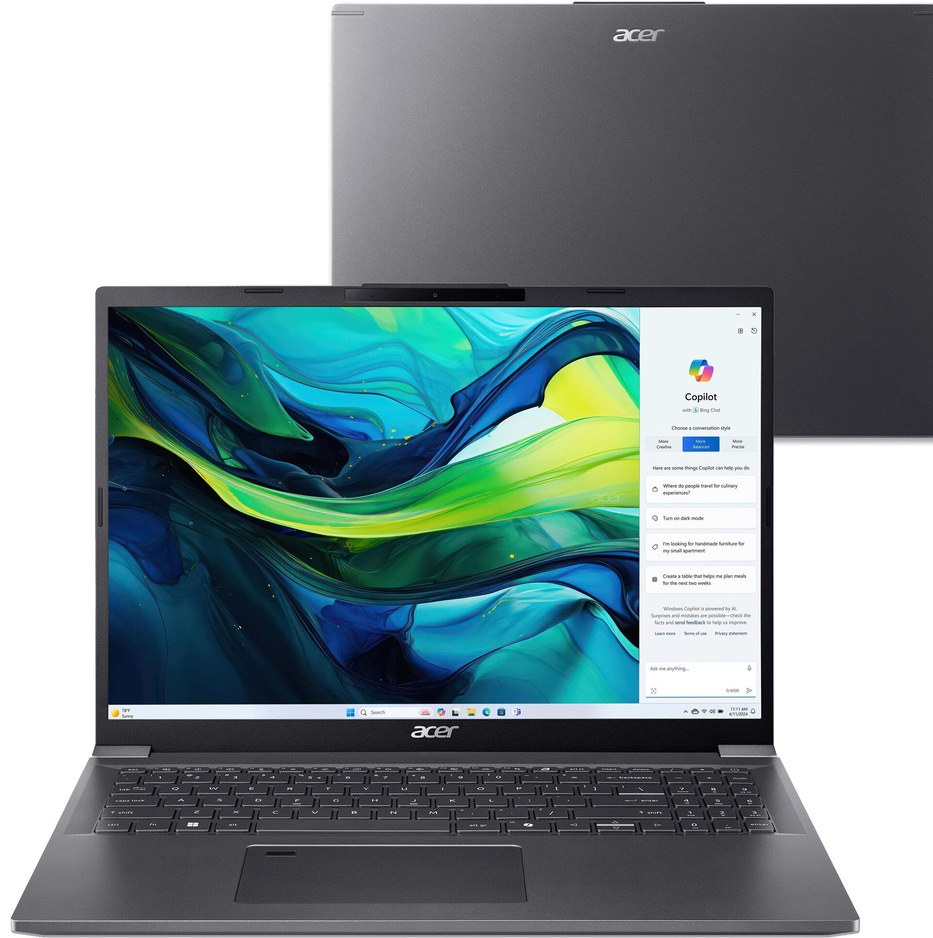
The Acer Aspire 16 is another sensible option for people who need a general-purpose computer rather than a specialized machine.
It is aimed at everyday productivity, making it suitable for people who spend their time reading the news, checking email, organizing documents, paying bills online, or keeping in touch with friends and family.
Compared with a premium laptop, an Aspire model may offer a more practical balance between price and features.
Why we recommend it
The 16-inch screen is a major benefit for users who prefer a roomy workspace. It can make long articles easier to read and provide more space for documents and spreadsheets.
Windows is also a flexible platform. Users can install traditional desktop programs, connect printers and external storage, and use a broad range of video-calling and productivity applications.
The Aspire 16 is worth looking at if a Chromebook feels too restrictive but a premium laptop seems unnecessary.
For the best long-term experience, look for an SSD, enough memory for multitasking, and a display that remains comfortable to read at the brightness level you normally use.
What to consider
The Aspire name covers multiple configurations, so don’t judge the entire range by one model’s specifications.
Some versions may be more powerful than necessary, while entry-level configurations may offer less memory or storage than you want. Prices and features also vary by country and retailer.
The laptop may be larger than necessary for someone who travels frequently. If portability matters more than screen size, a 14-inch model could be a better fit.
Verdict: The Acer Aspire 16 is a practical all-rounder for seniors who want a conventional Windows computer with a generous display and enough flexibility for a wide range of home tasks.
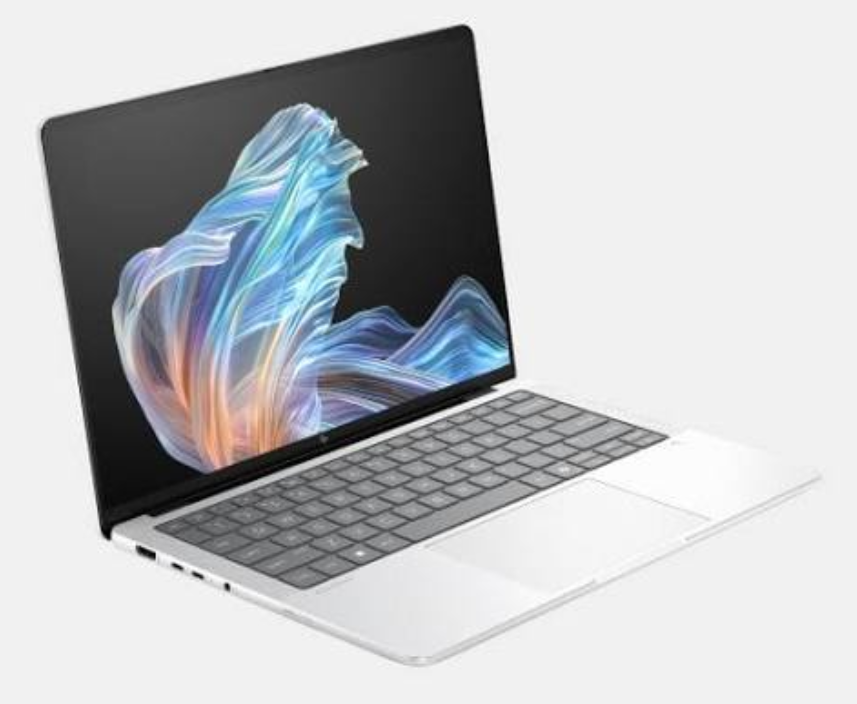
5. HP Chromebook Plus 15.6-inch — Best Chromebook for Most Seniors
Editorial rating: 8.7/10
Typical price category: Midrange
Best for: Seniors who mainly use the internet and want a straightforward laptop experience.
A Chromebook can be an excellent choice for someone whose computing needs are mostly online.
The HP Chromebook Plus 15.6-inch combines a large screen with ChromeOS, Google’s laptop operating system. Rather than focusing on traditional desktop software, ChromeOS centers on the browser and web-based applications.
That approach can make everyday computing feel less complicated for people who mainly use email, websites, online documents, and video-streaming services.
Why we recommend it
The 15.6-inch screen provides a comfortable viewing area for reading, browsing, and video calls.
ChromeOS is designed around straightforward everyday tasks. Users can open the browser, sign in to their accounts, visit their favorite websites, and use supported applications without needing to manage a traditional Windows desktop.
Chromebooks also tend to be a good fit for people who use Google’s services, such as Gmail, Google Photos, and Google Docs.
The Chromebook Plus designation indicates a higher specification tier than basic Chromebooks, although exact hardware varies by model. It’s still important to check the memory, storage, display, and processor of the specific version you’re buying.
What to consider
A Chromebook isn’t simply a cheaper Windows laptop. It runs a different operating system, and some traditional Windows programs won’t run on it.
Before buying, confirm that the user can access all the applications and services they need. People who depend on specialized accounting software, older desktop programs, or certain printer utilities may be better served by Windows or macOS.
An internet connection is important for many Chromebook activities, although some supported apps can work offline after setup.
Verdict: The HP Chromebook Plus 15.6-inch is a strong option for seniors who mainly browse the web, communicate online, and use browser-based services.
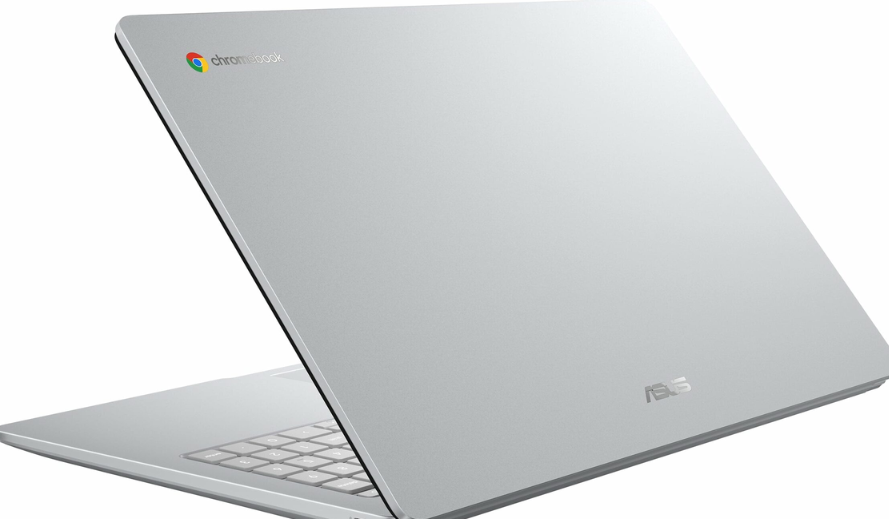
6. ASUS Chromebook CX15 — Best Affordable Laptop for Basic Tasks
Editorial rating: 8.4/10
Typical price category: Budget
Best for: Seniors who need an affordable computer for browsing, email, and video streaming.
If the goal is to spend as little as reasonably possible, the ASUS Chromebook CX15 is worth considering.
It is designed for everyday tasks rather than demanding professional applications. For a senior who mainly wants to read news, check messages, join video calls, and watch online videos, that may be all the computer they need.
Why we recommend it
The CX15 offers a straightforward route into Chromebook computing. Its large-format screen is useful for home use, while ChromeOS keeps the experience focused on web browsing and supported apps.
A budget Chromebook can be particularly suitable as a first laptop for someone who doesn’t need to install many traditional programs.
It may also work well for a family member who wants to help an older relative get online without spending a lot on hardware.
As with any Chromebook, automatic software updates and security protections are part of the overall platform experience. Buyers should still check the exact model’s support period before purchasing.
What to consider
Low prices usually come with compromises. Depending on the configuration, the screen, performance, memory, or storage may be more basic than those of pricier laptops.
The CX15 is best suited to light tasks. It isn’t the right choice for someone who needs Windows-only applications or frequently works with large files.
Because the model is available in different configurations and markets, check the precise specification and keyboard layout before ordering.
Verdict: The ASUS Chromebook CX15 is a sensible budget choice for seniors who need a simple computer for common online activities and don’t require traditional Windows software.
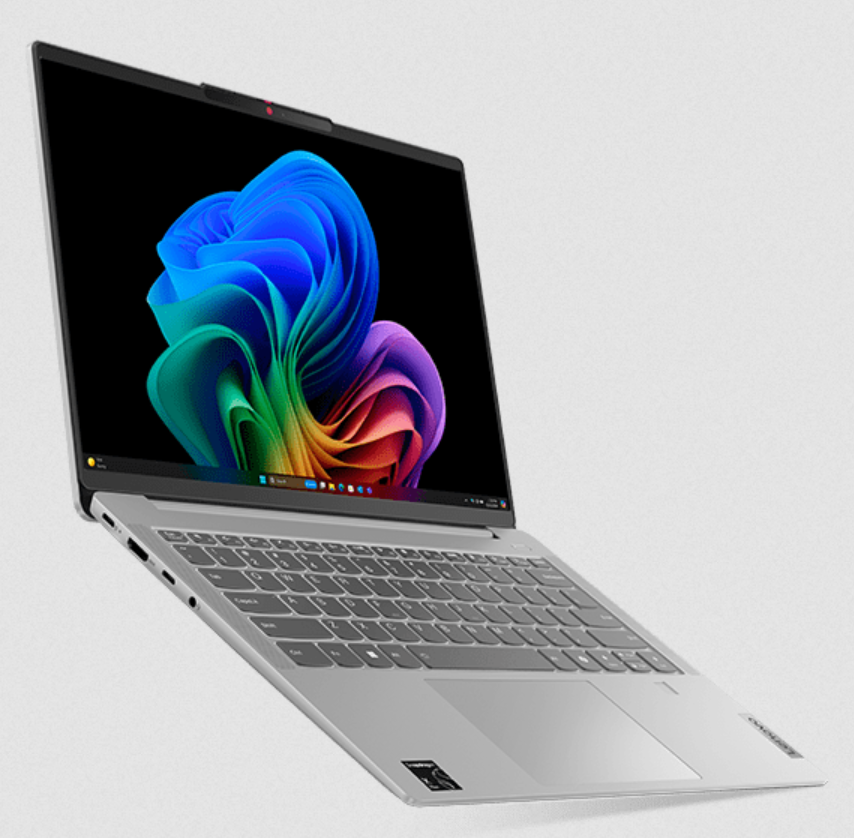
7. Lenovo IdeaPad Slim 5x Gen 11 — Best for Battery Life and Everyday Productivity
Editorial rating: 8.9/10
Typical price category: Midrange
Best for: Seniors who want a modern Windows laptop with responsive performance and good battery life.
The Lenovo IdeaPad Slim 5x Gen 11 is a good option for people who want a practical laptop that can handle everyday work without needing frequent charging.
Its combination of modern hardware and a productivity-focused design makes it suitable for browsing, messaging, writing, video calls, and organizing personal documents.
Why we recommend it
Battery life can make a noticeable difference in everyday use. A laptop that lasts for much of the day gives users more freedom to move around the house or take the computer on a trip without constantly searching for a power outlet.
The IdeaPad Slim 5x Gen 11 is equipped with a Snapdragon X2 Plus processor in the configuration covered by current reviews. That platform emphasizes efficient performance, which can benefit routine tasks and battery life.
For seniors, the practical benefits are more important than the processor name: the computer should start quickly, respond smoothly, and handle common applications without unnecessary delays.
Windows accessibility features also make it possible to enlarge text, adjust display scaling, and customize input settings.
What to consider
The Snapdragon processor uses an ARM-based architecture. Most common applications are available, but compatibility can differ for certain older programs, specialized utilities, and peripheral drivers.
Before buying, check whether the user’s essential software and printer work with the specific Windows-on-ARM configuration.
Also verify the screen specification and memory options. If the user has difficulty reading small text, a larger display or an external monitor may be more important than saving a little weight.
Verdict: The Lenovo IdeaPad Slim 5x Gen 11 is a strong everyday option for seniors who prefer Windows and value battery life. Just make sure any specialized software or older peripherals are compatible.
What Makes a Laptop Good for Seniors?
Before comparing individual models, it’s worth understanding what makes a computer comfortable for everyday use.
A large, readable screen
A display measuring around 15 or 16 inches can make text, websites, photos, and video calls easier to see. A good screen also gives users more room to enlarge text without making every page feel cramped.
Screen size isn’t everything, however. Display clarity, brightness, viewing angles, and the ability to adjust text size are equally important.
A comfortable keyboard and touchpad
Anyone who regularly writes emails or messages benefits from a keyboard with clearly defined keys and a comfortable layout. A dedicated numeric keypad can also help users who frequently enter numbers or manage household finances.
A touchpad should respond predictably and make it easy to move the pointer. Those who find touchpads difficult can connect a regular USB or wireless mouse.
Reliable performance
A laptop used for browsing, email, video calls, and online shopping doesn’t need a powerful gaming processor. It does need enough memory and storage to remain responsive during everyday tasks.
For a new Windows laptop, 16GB of RAM and a 512GB solid-state drive (SSD) make a sensible target when the budget allows. A well-chosen 8GB configuration may still be adequate for lighter use, especially on a Chromebook, but 16GB provides more room for multitasking.
Simple software and security
The best operating system depends on what the user already knows.
- Windows: A good choice for people familiar with Windows computers, Microsoft Office, and traditional desktop applications.
- macOS: Particularly convenient for people who already use an iPhone or iPad.
- ChromeOS: Well suited to web browsing, Gmail, video streaming, and browser-based services.
No operating system is automatically the easiest for every senior. Familiarity is often more important than the number of features available.
Dependable support
A laptop should receive security updates and have accessible support if something goes wrong. Before buying, check the manufacturer’s warranty, support options, and expected software-update period.
For someone who isn’t comfortable troubleshooting technology, help from a family member or a local computer shop can also be valuable.
How to Choose the Right Laptop for a Senior
The best laptop is the one that fits the user’s habits, budget, and comfort level. These practical considerations can help narrow the options.
1. Choose the operating system the user knows
If someone has used Windows for years, switching to a Mac or Chromebook may create unnecessary frustration. If they already own an iPhone and enjoy using it, a MacBook may feel more natural.
For a person who mainly uses Gmail, watches videos, and browses websites, a Chromebook may be enough.
Familiarity often matters more than technical specifications.
2. Prioritize screen comfort
For many home users, a 15- or 16-inch screen is a good starting point.
However, a larger screen isn’t automatically easier to read. Look for clear text, comfortable brightness, and sensible display scaling.
Windows and macOS both let users enlarge text and interface elements. ChromeOS also provides accessibility settings for adjusting the display and text.
If the user regularly works at the same desk, connecting a laptop to a larger external monitor may be even more comfortable.
3. Don’t overspend on performance
Most seniors who use a laptop for everyday tasks don’t need a high-end processor or dedicated graphics card.
For a Windows laptop, a modern processor, an SSD, and ideally 16GB of RAM are a sensible combination for long-term everyday use.
For a Chromebook, the requirements can be more modest because the operating system is designed around web-based tasks. Still, enough memory is important for keeping multiple tabs and applications open.
4. Check the keyboard and mouse
A laptop may have excellent specifications but still feel uncomfortable to use.
If possible, test the keyboard before buying. Look for keys that are easy to distinguish and a layout that feels natural.
A separate mouse can make pointer control easier for people who dislike touchpads. A full-size external keyboard may also help someone who prefers larger keys.
5. Consider weight and portability
A 16-inch laptop gives users more screen space, but it can be less convenient to carry.
If the computer will remain on a desk or kitchen table, weight may not matter much. If the user plans to carry it between home, appointments, and trips, a lighter 13- or 14-inch model could be preferable.
6. Make setup part of the purchase
A new laptop can be intimidating if it arrives with small text, unfamiliar settings, and numerous prompts.
A little initial setup can make the experience much easier. Consider arranging the following before handing over the computer:
- Increase text and interface size.
- Set a comfortable display brightness.
- Add bookmarks for frequently visited websites.
- Configure email and video-calling accounts.
- Connect the printer and mouse.
- Enable automatic operating-system updates.
- Set up a secure, easy-to-use sign-in method.
- Explain how to recognize suspicious emails and websites.
Taking 30 minutes to personalize the computer can be more valuable than spending extra money on a faster processor.
7. Think about support and maintenance
For a person who doesn’t want to troubleshoot problems, easy access to help can be a deciding factor.
Check the manufacturer’s warranty and technical support options. Also consider whether a trusted family member, friend, or local technician can help if something goes wrong.
Before buying a Chromebook, verify its automatic update expiration date. For Windows and macOS laptops, check that the operating system remains supported and receives security updates.
Common Mistakes to Avoid
Buying the cheapest configuration without checking the specifications. Two laptops with the same model name can have different processors, memory, storage, and screens.
Assuming every senior needs a simplified device. Many older adults are comfortable with ordinary computers and want full-featured software.
Choosing a touchscreen without considering comfort. Touch input can be convenient, but it isn’t essential. A good keyboard and mouse may be easier for some people.
Buying a Chromebook without checking software compatibility. Make sure the user’s essential programs, printers, and online services work with ChromeOS.
Ignoring text size and accessibility. A laptop’s screen can be sharp and bright but still uncomfortable if menus and text are too small.
Forgetting security and updates. A computer should continue receiving security updates, and the user should know how to recognize suspicious links and requests for personal information.
Frequently Asked Questions
What is the easiest laptop for seniors to use?
There is no single answer for everyone. A Chromebook can be straightforward for someone who mainly uses websites and email. A Windows laptop may be easier for someone familiar with Windows, while a MacBook is often a natural choice for an existing iPhone user.
The most important factor is choosing a system that matches the person’s experience and everyday needs.
Are Chromebooks good laptops for seniors?
Yes, especially for people who mainly browse the internet, use email, watch videos, and access online services. ChromeOS is designed around web-based computing and can be relatively simple to maintain.
However, Chromebooks cannot run every traditional Windows application. Check software and peripheral compatibility before buying.
Is Windows or macOS better for older adults?
Neither is universally better. Windows offers broad software and hardware compatibility, while macOS can be particularly convenient for people who already use Apple devices.
The best choice is usually the operating system the person knows best or the one that best supports the applications they need.
How much RAM does a senior need in a laptop?
For a new Windows laptop intended to last several years, 16GB is a sensible target. It provides room for multiple browser tabs, video calls, and office applications.
A Chromebook used for basic browsing may work well with less memory, depending on the exact model and workload.
Is a 15-inch or 16-inch laptop better for seniors?
A 15- or 16-inch screen is often a good choice because it provides more space for reading and viewing content. A 16-inch model may be especially comfortable for users who enlarge text.
However, people who travel frequently or have difficulty lifting a heavier laptop may prefer a smaller, lighter device.
Can a senior use a laptop without a mouse?
Yes. Modern laptops include touchpads that control the pointer. Some also offer touchscreens.
However, a separate mouse can make navigation easier for people who find touchpads difficult to control. Wireless and wired options are both available.
What is a reasonable budget for a senior-friendly laptop?
The right budget depends on the user’s needs. An entry-level Chromebook can cover basic online tasks at a relatively low cost, while a capable Windows laptop typically costs more. Premium MacBooks offer strong performance and build quality but may be unnecessary for simple browsing and email.
Rather than paying for the most powerful hardware, prioritize a comfortable screen, sufficient memory, reliable storage, and ongoing software support.
What should I set up before giving a laptop to an older relative?
Install updates, adjust text size, configure email, bookmark useful websites, connect the printer if needed, and make sure the user can sign in comfortably.
It’s also worth explaining basic security practices, such as avoiding unexpected attachments, checking website addresses, and never sharing passwords or verification codes with unsolicited callers.
Final Verdict: Which Laptop Should You Buy?
The best laptops for seniors aren’t necessarily the most expensive or technically advanced. They are the computers that make everyday tasks easier, provide a comfortable viewing experience, and suit the user’s existing habits.
The Apple MacBook Air 15-inch (M5) is our premium pick for people who want a polished laptop with a large display and already feel comfortable with Apple’s ecosystem.
For Windows users, the Acer Swift Go 16 AI is an attractive option with a spacious screen and modern hardware. The Acer Aspire Go 16 offers a more budget-conscious route to a large-screen Windows laptop.
If most activities take place in a browser, the HP Chromebook Plus 15.6-inch is worth considering, while the ASUS Chromebook CX15 offers a more affordable option for basic computing. The Acer Aspire 16 is a practical everyday Windows alternative, and the Lenovo IdeaPad Slim 5x Gen 11 is a strong candidate for users who value battery life and responsive performance.
Before making a final decision, check the exact configuration, test the keyboard if possible, and confirm that the laptop will run the applications and accessories the user relies on.
Above all, choose a computer that the person feels comfortable using. A well-configured, familiar laptop will often be a better purchase than a more expensive machine with features they don’t need.
Sources
- Wirecutter — The Best Laptops for Older Adults
https://www.nytimes.com/wirecutter/reviews/best-laptops-for-seniors/ - Apple — MacBook Air Technical Specifications
https://www.apple.com/macbook-air/specs/ - Tom’s Guide — Best Windows Laptops in 2026
https://www.tomsguide.com/computing/laptops/best-windows-laptops - TechRadar — Best Chromebooks
https://www.techradar.com/news/best-chromebook - TechRadar — Windows Laptop Recommendations for 2026
https://www.techradar.com/computing/windows-laptops/our-top-windows-11-laptops-of-2026-weve-tested-dozens-of-laptops-but-these-were-the-models-that-impressed-us-the-most
Comparison Tables
The 7 Best Laptops for Seniors at a Glance
| Laptop | Best for | Operating system | Screen class | Editorial rating |
|---|---|---|---|---|
| Apple MacBook Air 15-inch (M5, 2026) | Premium experience | macOS | 15.3 inches | 9.2/10 |
| Acer Swift Go 16 AI | Large-screen Windows use | Windows | 16 inches | 9.1/10 |
| Acer Aspire Go 16 | Budget Windows use | Windows | 16 inches | 8.7/10 |
| Acer Aspire 16 | Everyday computing | Windows | 16 inches | 8.8/10 |
| HP Chromebook Plus 15.6-inch | Most Chromebook users | ChromeOS | 15.6 inches | 8.7/10 |
| ASUS Chromebook CX15 | Basic online tasks | ChromeOS | 15.6-inch class | 8.4/10 |
| Lenovo IdeaPad Slim 5x Gen 11 | Battery life and productivity | Windows | Configuration-dependent | 8.9/10 |
Which Laptop Best Fits Your Needs?
| User’s main priority | Recommended laptop | Why it fits |
|---|---|---|
| Premium laptop and Apple integration | Apple MacBook Air 15-inch | Large display, macOS, strong battery life |
| Large screen and Windows | Acer Swift Go 16 AI | Spacious display and modern hardware |
| Affordable Windows laptop | Acer Aspire Go 16 | Focuses on everyday computing |
| General home computing | Acer Aspire 16 | Practical Windows functionality |
| Browser-based tasks | HP Chromebook Plus 15.6-inch | ChromeOS and a large screen |
| Lowest-cost basic computing | ASUS Chromebook CX15 | Designed for everyday online use |
| Battery life and everyday productivity | Lenovo IdeaPad Slim 5x Gen 11 | Efficient hardware and Windows flexibility |
What to Look for Before Buying
| Feature | Recommended target | Why it matters |
|---|---|---|
| Screen size | Around 15–16 inches for home use | Provides more room for text and windows |
| Memory for Windows | Ideally 16GB | Helps with multitasking and longer-term usability |
| Storage | SSD; 512GB is a useful target | Provides responsive performance and room for files |
| Operating system | Windows, macOS, or ChromeOS based on user needs | Familiarity and software compatibility matter |
| Accessibility | Adjustable text, scaling, contrast, and voice input | Makes the computer more comfortable to use |
| Keyboard | Comfortable layout with clearly distinguishable keys | Helps with typing emails and documents |
| Connectivity | Ports or adapters for required accessories | Ensures printers, drives, and other devices work |
| Software support | Confirm ongoing security updates | Helps keep the computer secure |
| Warranty and support | Clear warranty and accessible assistance | Makes troubleshooting easier |
Laptop Types by Budget and Use
| Laptop type | Relative cost | Best suited to | Main consideration |
|---|---|---|---|
| Budget Chromebook | Low | Email, web browsing, streaming | Doesn’t run every Windows program |
| Budget Windows laptop | Low to moderate | Everyday tasks and desktop applications | Check memory, screen quality, and storage |
| Midrange Windows laptop | Moderate | Multitasking and general home computing | Compare configurations carefully |
| Premium Windows laptop | Moderate to high | Users who want a large screen and refined hardware | May cost more than basic needs justify |
| MacBook Air | High | Apple users and people wanting a premium experience | Requires familiarity with macOS if switching from Windows |